> ## Documentation Index
> Fetch the complete documentation index at: https://docs.subframe.com/llms.txt
> Use this file to discover all available pages before exploring further.
# Quick edits
> Ask AI in context to edit or insert specific elements.
You can make targeted edits to specific elements using [quick actions](/learn/design-mode/quick-actions).
1. Select an element
2. Right-click or press / to open [quick actions](/learn/design-mode/quick-actions)
3. Select **Ask AI to edit...**
4. Type what you want to change and press Enter
You can also ask AI from the inspector panel:
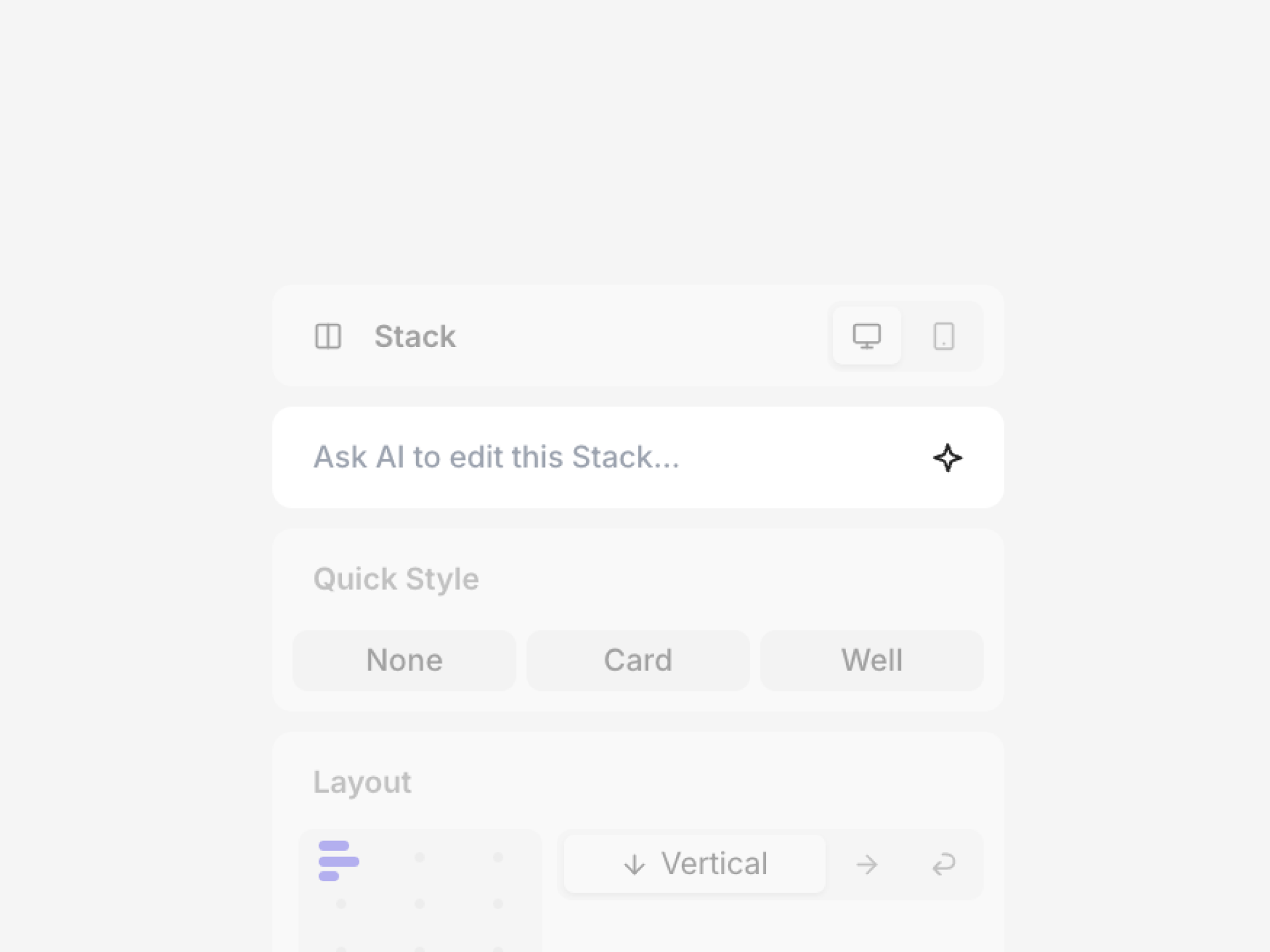 AI replaces or modifies the selected element based on your prompt.
## Quick insert with AI
Open the [quick insert](/learn/design-mode/adding-elements) menu to add new elements using AI.
1. Select an element
2. Click a **+** button (above, below, left, or right)
3. Type what you want to insert
4. Press **Ask AI to insert...**
AI adds the new element next to your selection, automatically applying layout and wrapping stacks for you.
## Reviewing variations
For open-ended prompts, AI generates up to three distinct variations so you can compare directions before committing. Deterministic edits—like "make the text bold" or "change the button to blue"—return a single result.
A review tray appears with a labeled thumbnail for each variation:
1. Click a variation to preview it live on the canvas
2. Type in the shared input to **Refine...** and regenerate the set (optional)
3. Click **Keep** to apply the active variation, or **Discard** to dismiss
When editing an existing element, the tray also includes an **Original** card so you can compare against the unedited version.
AI replaces or modifies the selected element based on your prompt.
## Quick insert with AI
Open the [quick insert](/learn/design-mode/adding-elements) menu to add new elements using AI.
1. Select an element
2. Click a **+** button (above, below, left, or right)
3. Type what you want to insert
4. Press **Ask AI to insert...**
AI adds the new element next to your selection, automatically applying layout and wrapping stacks for you.
## Reviewing variations
For open-ended prompts, AI generates up to three distinct variations so you can compare directions before committing. Deterministic edits—like "make the text bold" or "change the button to blue"—return a single result.
A review tray appears with a labeled thumbnail for each variation:
1. Click a variation to preview it live on the canvas
2. Type in the shared input to **Refine...** and regenerate the set (optional)
3. Click **Keep** to apply the active variation, or **Discard** to dismiss
When editing an existing element, the tray also includes an **Original** card so you can compare against the unedited version.