> ## Documentation Index
> Fetch the complete documentation index at: https://docs.subframe.com/llms.txt
> Use this file to discover all available pages before exploring further.
# Hover, active, focus states
> Add interaction states to your components.
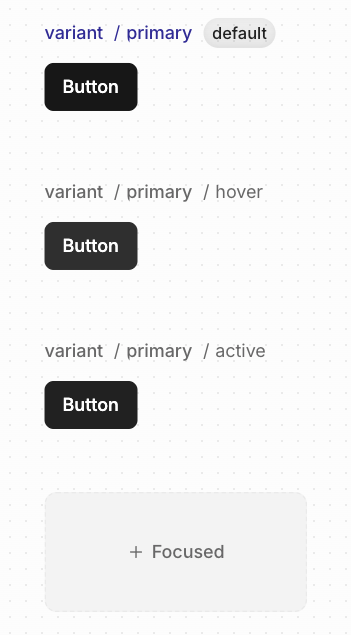 Subframe supports three interaction states:
* **Hover** — Mouse over (`:hover`)
* **Active** — Mouse press (`:active`)
* **Focused** — Keyboard focus (`:focus-visible`)
## Creating a state
1. Hover over the variant you want to add a state to
2. Click **+Hover**, **+Active**, or **+Focus**
## Modifying states
1. Select the state you want to modify
2. Select an element
3. Modify any property in the Inspector
4. An override indicator (pink dot) appears next to the property
Subframe supports three interaction states:
* **Hover** — Mouse over (`:hover`)
* **Active** — Mouse press (`:active`)
* **Focused** — Keyboard focus (`:focus-visible`)
## Creating a state
1. Hover over the variant you want to add a state to
2. Click **+Hover**, **+Active**, or **+Focus**
## Modifying states
1. Select the state you want to modify
2. Select an element
3. Modify any property in the Inspector
4. An override indicator (pink dot) appears next to the property
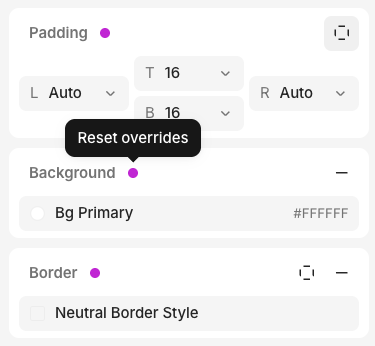 To remove a state override, click the pink dot to reset to the default value.
## Hover states in code
If your element has a hover state, we add `cursor-pointer` in the generated code:
```tsx theme={null}
To remove a state override, click the pink dot to reset to the default value.
## Hover states in code
If your element has a hover state, we add `cursor-pointer` in the generated code:
```tsx theme={null}
Click me
```