> ## Documentation Index
> Fetch the complete documentation index at: https://docs.subframe.com/llms.txt
> Use this file to discover all available pages before exploring further.
# Comments
> Leave feedback and collaborate on your designs.
Comments let you leave feedback directly on your designs. Adding and viewing comments is available on all plans (including viewers). You can only add comments to pages today.
## Adding comments
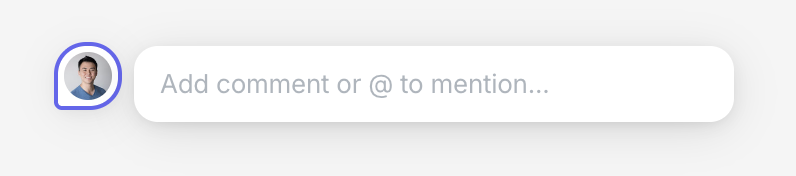 1. Click **Comment** in the navbar, or press C
2. Click on an element to add a comment
Comments stay attached to specific elements. When you move or edit an element, its comments move with it. Comments are shown as pins directly on the design or in the right side panel.
## Moving comments
1. Select a comment thread pin
2. Drag the pin to reposition it within the design
## Mentioning teammates
1. Type @ in a comment
2. Select a user to mention
Mentioned users will receive an email notification.
## Resolving comments
1. Open the comment thread
2. Click the checkmark to resolve
1. Click **Comment** in the navbar, or press C
2. Click on an element to add a comment
Comments stay attached to specific elements. When you move or edit an element, its comments move with it. Comments are shown as pins directly on the design or in the right side panel.
## Moving comments
1. Select a comment thread pin
2. Drag the pin to reposition it within the design
## Mentioning teammates
1. Type @ in a comment
2. Select a user to mention
Mentioned users will receive an email notification.
## Resolving comments
1. Open the comment thread
2. Click the checkmark to resolve