> ## Documentation Index
> Fetch the complete documentation index at: https://docs.subframe.com/llms.txt
> Use this file to discover all available pages before exploring further.
# Inspector
> Configure element properties in the right sidebar.
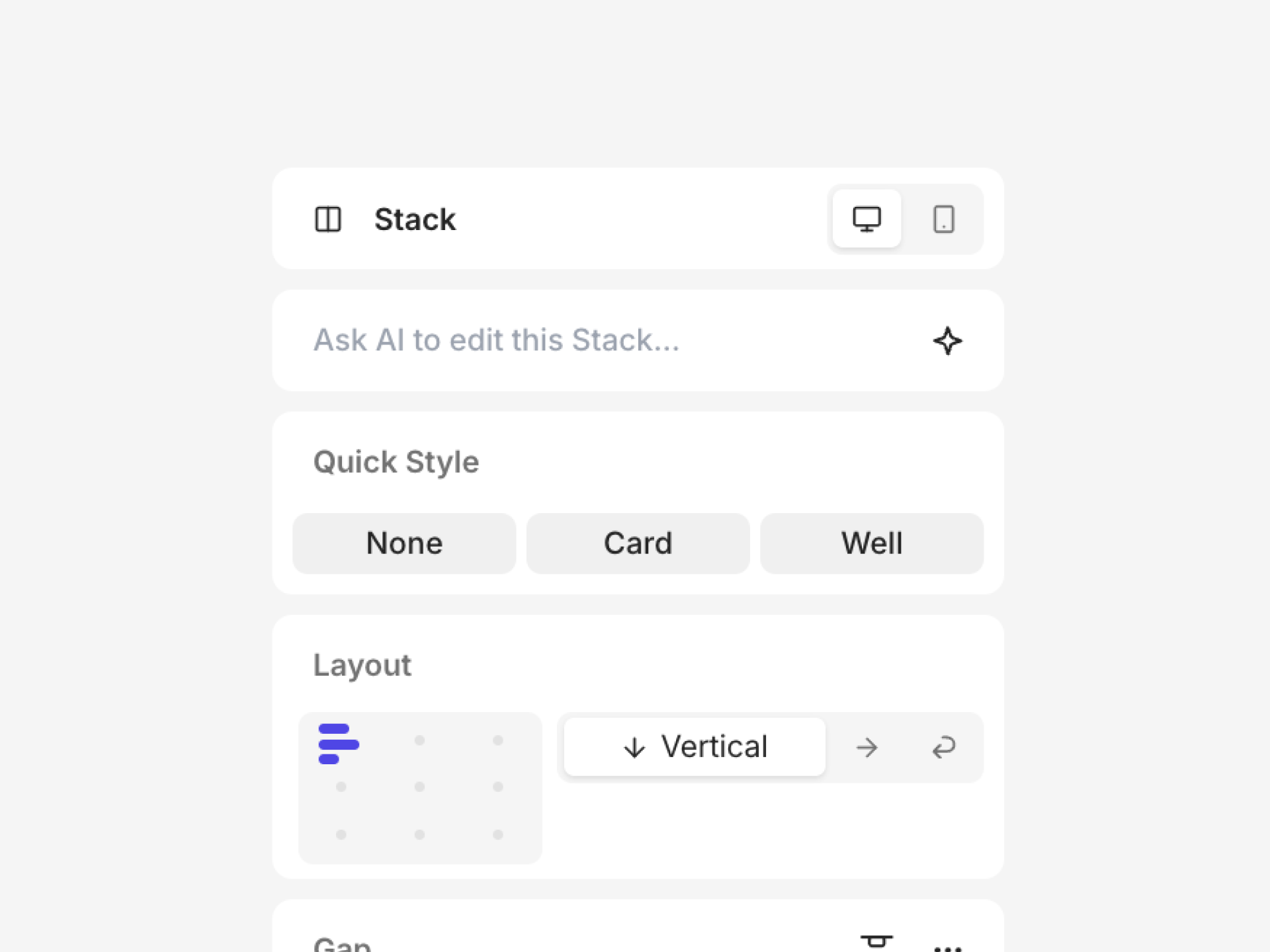
The Inspector panel shows all editable properties for the selected element. Select any element on the canvas to see its properties in the right sidebar.
 ## Overrides properties
Overrides let you customize properties for specific contexts without changing the base element. There are two types of overrides:
* **[Responsive overrides](/learn/design-mode/responsive-design)** — mobile overrides for properties that need different values on small screens
* **[Variant overrides](/learn/components/variants)** — different values for component instances
## Overrides properties
Overrides let you customize properties for specific contexts without changing the base element. There are two types of overrides:
* **[Responsive overrides](/learn/design-mode/responsive-design)** — mobile overrides for properties that need different values on small screens
* **[Variant overrides](/learn/components/variants)** — different values for component instances
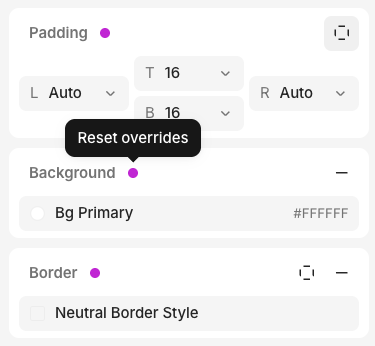 When a property has an override, a pink dot appears next to it. Click the pink dot to remove the override and revert to the default value.
## Prebuilt interactive components
The inspector lets you set the default state for some prebuilt components, so you can preview how they look in different conditions:
* **Checkbox**, **Switch**, **Radio Group item**, **Toggle Group item** — toggle the **Checked** prop
* **Text Field**, **Text Area** — type into the **Value** prop
These controls only affect how the instance renders in design mode and preview. Runtime state in generated code is controlled by your application — see [headless components](/concepts/code-generation#headless-components).
## Keyboard shortcuts
Most properties in the inspector have a keyboard shortcut. Hover over any edit action to see its shortcut.
When a property has an override, a pink dot appears next to it. Click the pink dot to remove the override and revert to the default value.
## Prebuilt interactive components
The inspector lets you set the default state for some prebuilt components, so you can preview how they look in different conditions:
* **Checkbox**, **Switch**, **Radio Group item**, **Toggle Group item** — toggle the **Checked** prop
* **Text Field**, **Text Area** — type into the **Value** prop
These controls only affect how the instance renders in design mode and preview. Runtime state in generated code is controlled by your application — see [headless components](/concepts/code-generation#headless-components).
## Keyboard shortcuts
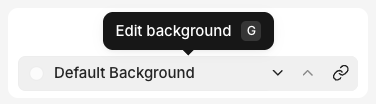
Most properties in the inspector have a keyboard shortcut. Hover over any edit action to see its shortcut.
 For the full list, see [Keyboard shortcuts](/learn/design-mode/keyboard-shortcuts).