> ## Documentation Index
> Fetch the complete documentation index at: https://docs.subframe.com/llms.txt
> Use this file to discover all available pages before exploring further.
# Keyboard shortcuts
> Speed up your workflow with keyboard shortcuts.
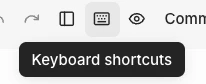
You can view the full list of keyboard shortcuts at any time by clicking the keyboard icon in the editor navbar.
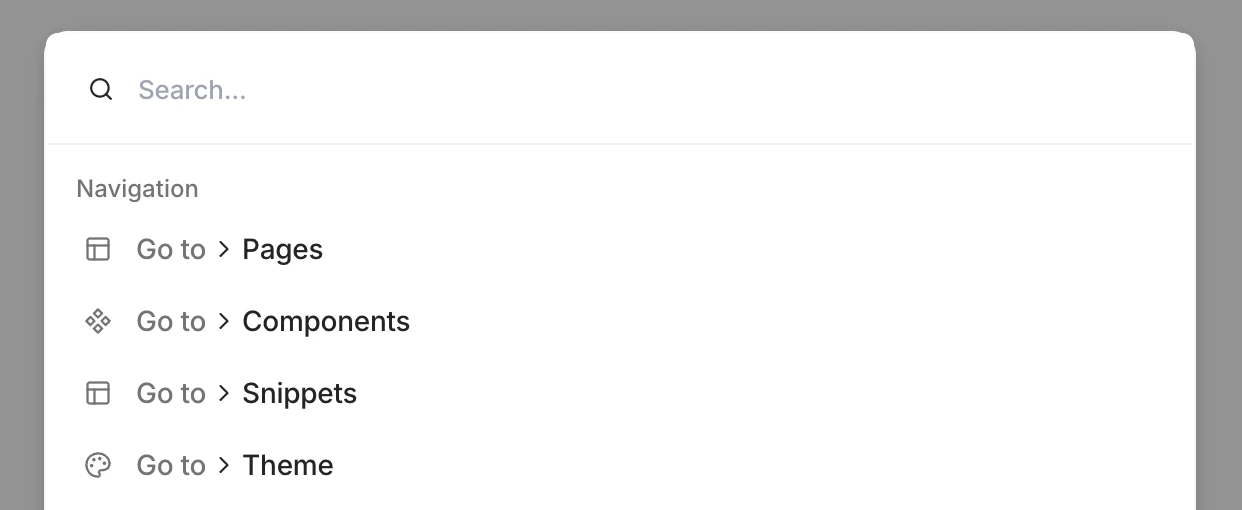
 You can also press Cmd + K to quickly navigate to another component.
 ## Step back to where you came from
Press Esc twice to navigate back up your editing history:
* From a component or snippet that you opened from another design, return to that previous design
* From a page inside a flow, return to the flow editor
In the page editor, the canvas pulses on the first press as visual feedback.
## Step back to where you came from
Press Esc twice to navigate back up your editing history:
* From a component or snippet that you opened from another design, return to that previous design
* From a page inside a flow, return to the flow editor
In the page editor, the canvas pulses on the first press as visual feedback.