> ## Documentation Index
> Fetch the complete documentation index at: https://docs.subframe.com/llms.txt
> Use this file to discover all available pages before exploring further.
# Page layouts
> Apply reusable navigation and modal layouts to your pages.
Page layouts are reusable templates that wrap your page content with headers, sidebars, modals, or drawers.
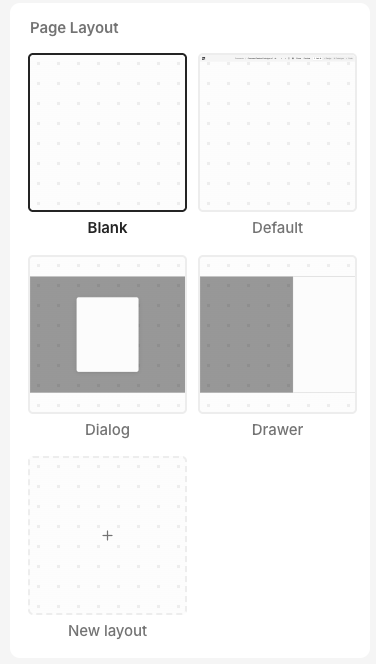 All layouts have a slot property called `children` that cannot be deleted. Any page contents will be rendered inside this slot.
## Applying a layout
1. Open a page in the editor.
2. Ensure you don't have any elements selected. You should see layouts in the right sidebar.
3. Click on the layout to apply it to the page.
## Creating a new layout
All layouts have a slot property called `children` that cannot be deleted. Any page contents will be rendered inside this slot.
## Applying a layout
1. Open a page in the editor.
2. Ensure you don't have any elements selected. You should see layouts in the right sidebar.
3. Click on the layout to apply it to the page.
## Creating a new layout
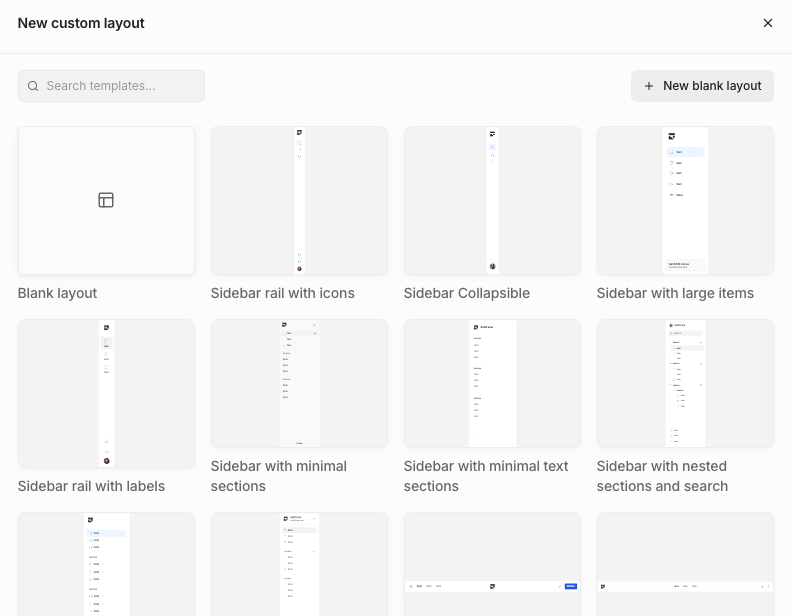 1. Open a page in the editor.
2. Ensure you don't have any elements selected. You should see layouts in the right sidebar.
3. Click on the **+** new layout button.
4. Select a layout template or start from blank to create your layout.
1. Open a page in the editor.
2. Ensure you don't have any elements selected. You should see layouts in the right sidebar.
3. Click on the **+** new layout button.
4. Select a layout template or start from blank to create your layout.