> ## Documentation Index
> Fetch the complete documentation index at: https://docs.subframe.com/llms.txt
> Use this file to discover all available pages before exploring further.
# Working with stacks
> Master stack-based layouts with direction, spacing, and alignment.
Stacks are the most fundamental building block in Subframe. They're essential for layout—equivalent to flexbox in code and auto-layouts in Figma.
## Grouping elements
To wrap elements in a stack:
1. Select one or more elements
2. Press Cmd + G, or right-click to open [quick actions](/learn/design-mode/quick-actions) and select **Wrap in Stack**
## Updating layout and alignment
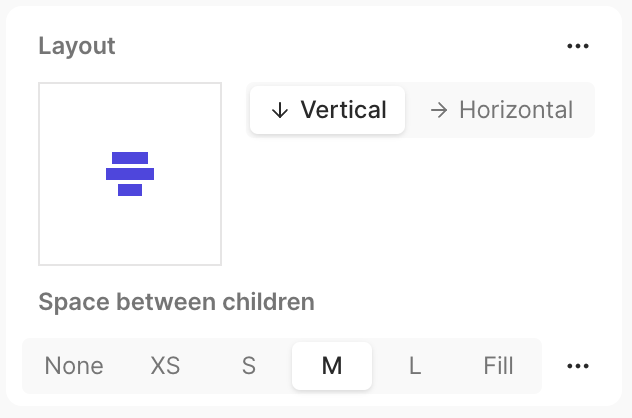 Select a stack to configure its layout in the Inspector:
* **Direction** — Vertical, horizontal, or wrap
* **Gap** — Space between children (pixels or "fill" for space-between)
* **Alignment** — How children are positioned (start, center, end, space between, space around, stretch)
## FAQ
First, ensure your parent stack has enough space (set width / height to fill).
**Solution 1 — Make the sibling fill (recommended)**
1. Select the sibling element
2. Set width / height to **Fill**
The sibling expands and pushes the other element to the opposite side.
**Solution 2 — Set gap to fill**
1. Select the parent stack
2. Set gap to **Fill**
Alignment applies to all children in a stack, so you need to wrap the element in its own stack.
1. Wrap the element in its own stack
2. Set the wrapper stack's alignment as needed
3. Set the wrapper stack's width or height to fill if needed
The wrapper stack lets you control that element's alignment independently.
Select a stack to configure its layout in the Inspector:
* **Direction** — Vertical, horizontal, or wrap
* **Gap** — Space between children (pixels or "fill" for space-between)
* **Alignment** — How children are positioned (start, center, end, space between, space around, stretch)
## FAQ
First, ensure your parent stack has enough space (set width / height to fill).
**Solution 1 — Make the sibling fill (recommended)**
1. Select the sibling element
2. Set width / height to **Fill**
The sibling expands and pushes the other element to the opposite side.
**Solution 2 — Set gap to fill**
1. Select the parent stack
2. Set gap to **Fill**
Alignment applies to all children in a stack, so you need to wrap the element in its own stack.
1. Wrap the element in its own stack
2. Set the wrapper stack's alignment as needed
3. Set the wrapper stack's width or height to fill if needed
The wrapper stack lets you control that element's alignment independently.