> ## Documentation Index
> Fetch the complete documentation index at: https://docs.subframe.com/llms.txt
> Use this file to discover all available pages before exploring further.
# Project settings
> Configure project settings like code generation and AI preferences.
## Access project settings
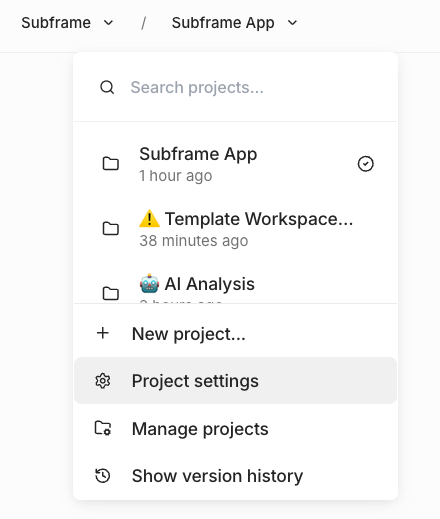 1. Open your project in the editor
2. In the left sidebar, find the **Design System** section
3. Click the **Settings** icon next to **Design System**
You should see the project settings dialog.
1. Open your project in the editor
2. In the left sidebar, find the **Design System** section
3. Click the **Settings** icon next to **Design System**
You should see the project settings dialog.
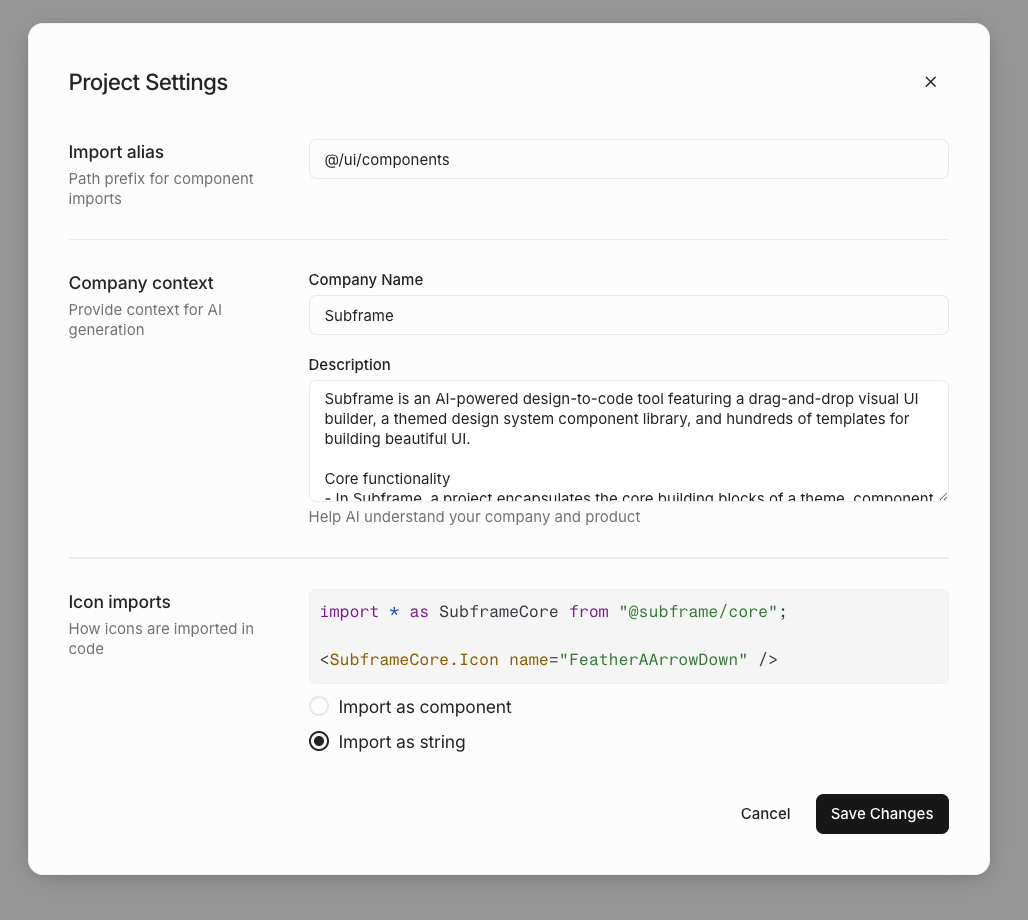 ## Import alias
Set the path prefix used for component imports in generated code.
**Default:** `@/ui/components`
This determines how import statements appear in your exported code:
```tsx theme={null}
import { Button } from "@/ui/components/Button"
```
Change this to match your project's directory structure and TypeScript path aliases.
## Company context
Provide context to help AI generate designs that are more relevant to your product.
#### Company name
Your company or product name. AI uses this to personalize generated content and copy.
#### Description
Describe your company, product, and design preferences. This helps AI understand:
* What your product does
* Your target audience
* Tone and style preferences
* Any specific design guidelines
The more context you provide, the better AI can tailor designs to your brand and product.
## Icon imports
Choose how icons are imported in generated code.
#### Import as component
Icons are imported as React components:
```tsx theme={null}
import { FeatherIcon } from "@/ui/components/FeatherIcon"
```
```tsx theme={null}
```
#### Import as string
Icons are referenced by name as strings:
```tsx theme={null}
import { Icon } from "@/ui/components/Icon"
```
```tsx theme={null}
```
If your project has uploaded custom icons, you must use "Import as component". The string option is disabled when
custom icons are present.
## Import alias
Set the path prefix used for component imports in generated code.
**Default:** `@/ui/components`
This determines how import statements appear in your exported code:
```tsx theme={null}
import { Button } from "@/ui/components/Button"
```
Change this to match your project's directory structure and TypeScript path aliases.
## Company context
Provide context to help AI generate designs that are more relevant to your product.
#### Company name
Your company or product name. AI uses this to personalize generated content and copy.
#### Description
Describe your company, product, and design preferences. This helps AI understand:
* What your product does
* Your target audience
* Tone and style preferences
* Any specific design guidelines
The more context you provide, the better AI can tailor designs to your brand and product.
## Icon imports
Choose how icons are imported in generated code.
#### Import as component
Icons are imported as React components:
```tsx theme={null}
import { FeatherIcon } from "@/ui/components/FeatherIcon"
```
```tsx theme={null}
```
#### Import as string
Icons are referenced by name as strings:
```tsx theme={null}
import { Icon } from "@/ui/components/Icon"
```
```tsx theme={null}
```
If your project has uploaded custom icons, you must use "Import as component". The string option is disabled when
custom icons are present.