> ## Documentation Index
> Fetch the complete documentation index at: https://docs.subframe.com/llms.txt
> Use this file to discover all available pages before exploring further.
# Annotations
> Add implementation notes to guide AI prototype generation.
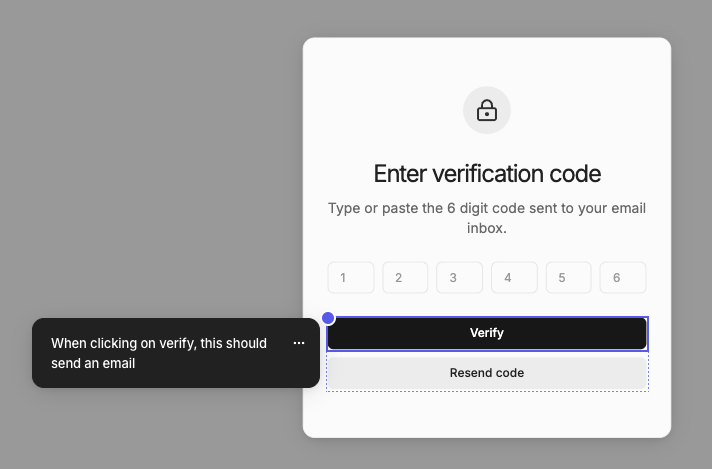 Annotations let you add implementation notes to your design. They are used by prototype mode to instruct AI how your designs should behave.
## Adding annotations
1. Click **Annotate** in navbar
2. Click on an element in canvas
3. Type the annotation
4. Press Cmd + Enter to save
You should see blue dots on elements for each annotation.
## Exporting to code
Annotations are also useful for documenting your design for handoff. Any annotation will be exported as comments in code:
Annotations let you add implementation notes to your design. They are used by prototype mode to instruct AI how your designs should behave.
## Adding annotations
1. Click **Annotate** in navbar
2. Click on an element in canvas
3. Type the annotation
4. Press Cmd + Enter to save
You should see blue dots on elements for each annotation.
## Exporting to code
Annotations are also useful for documenting your design for handoff. Any annotation will be exported as comments in code:
