

Create your first project
- Sign up at subframe.com to create your first project.
- Configure your theme with quick presets or customize later in the Theme page.
- Select a default navigation style for your app.
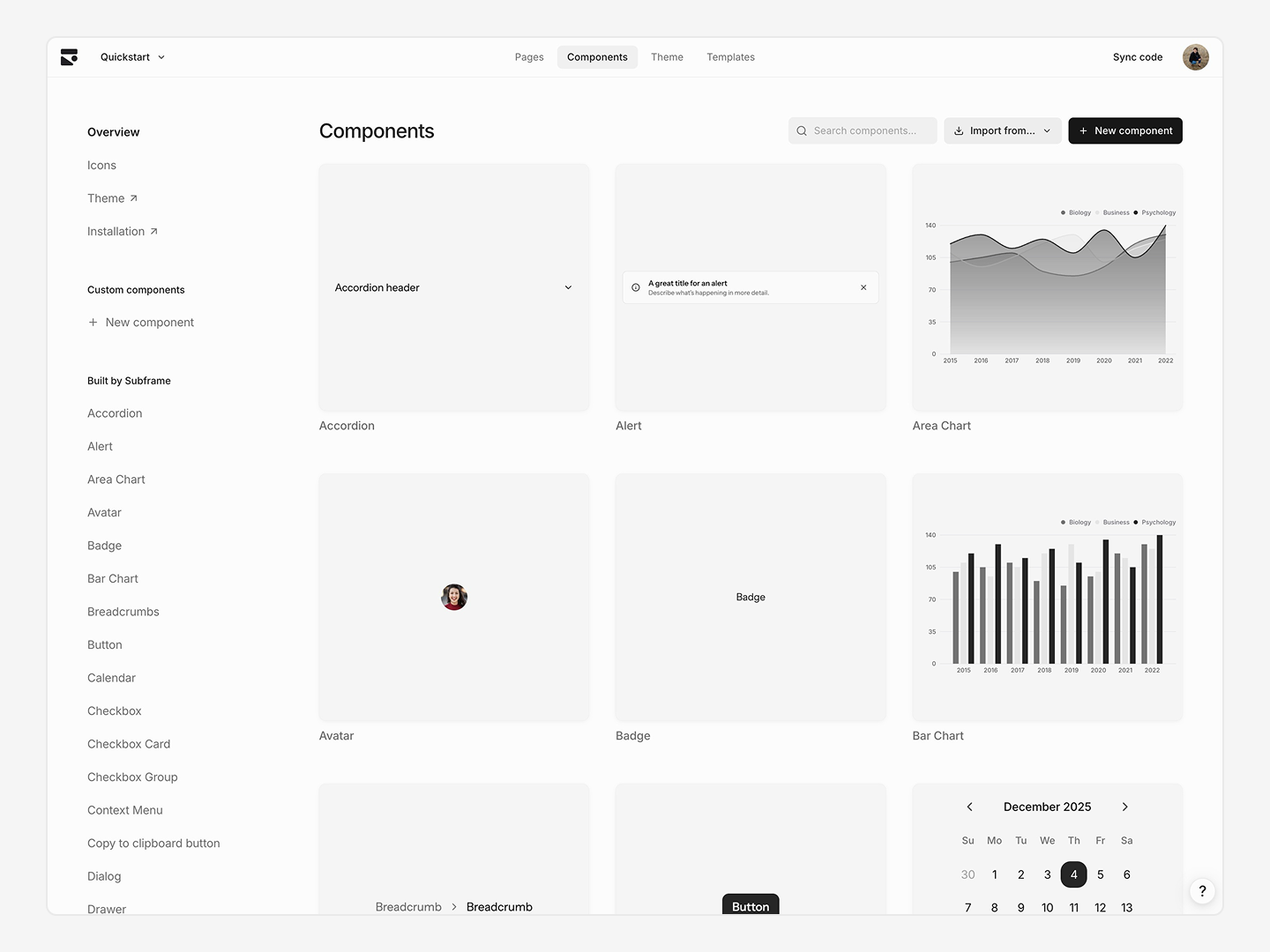
Design your first page
You can create a new page with AI or start from scratch.1
Prompt with AI
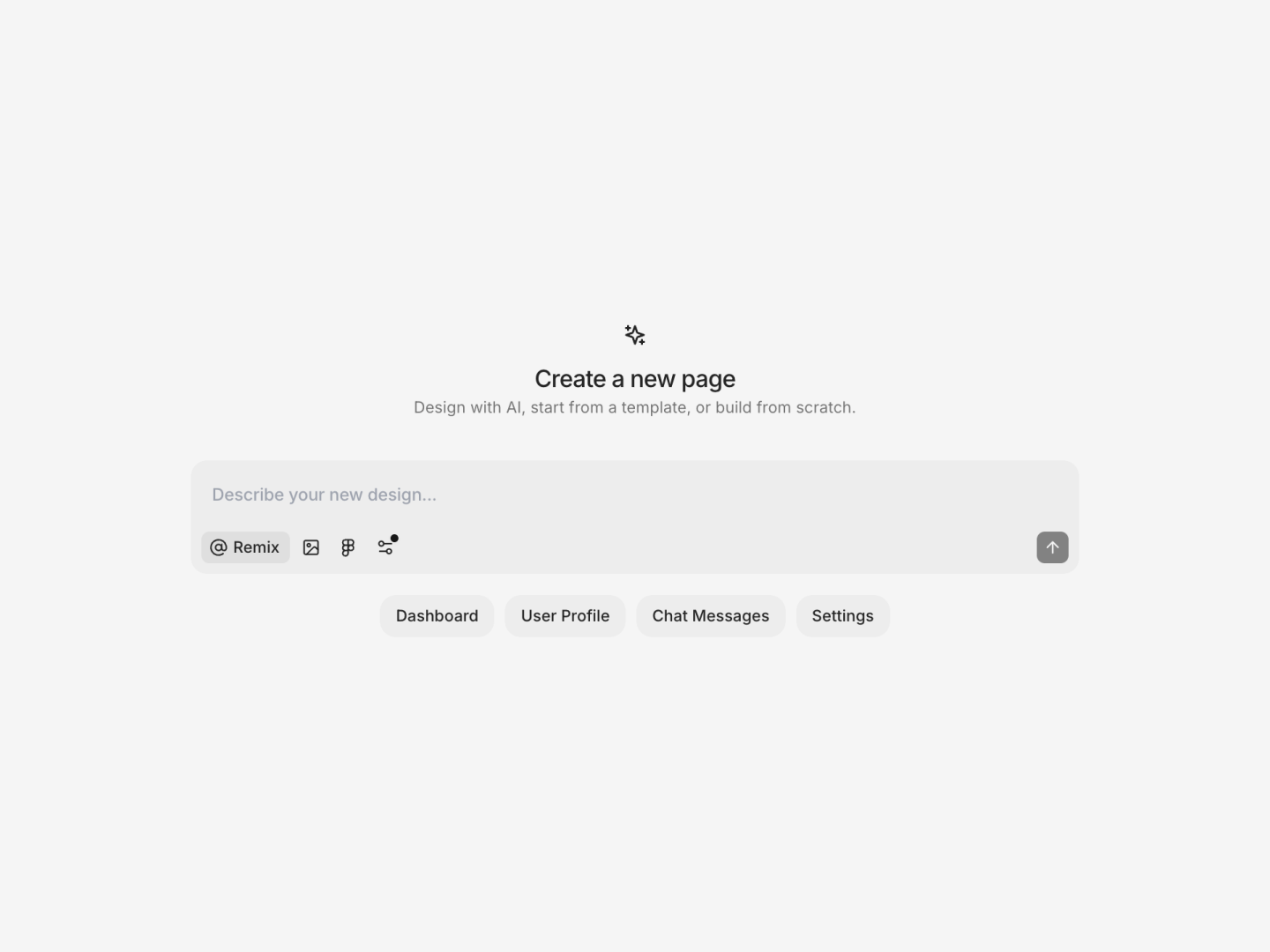
- Open your project and click the Ask AI button in the toolbar (or press Cmd + /).
- Type a prompt for the page you want to design.
- Submit your prompt and wait for designs to generate.
- Variations land as pages in a flow on your canvas — click a variation tile in the chat to open one.
2
Edit in Design Mode
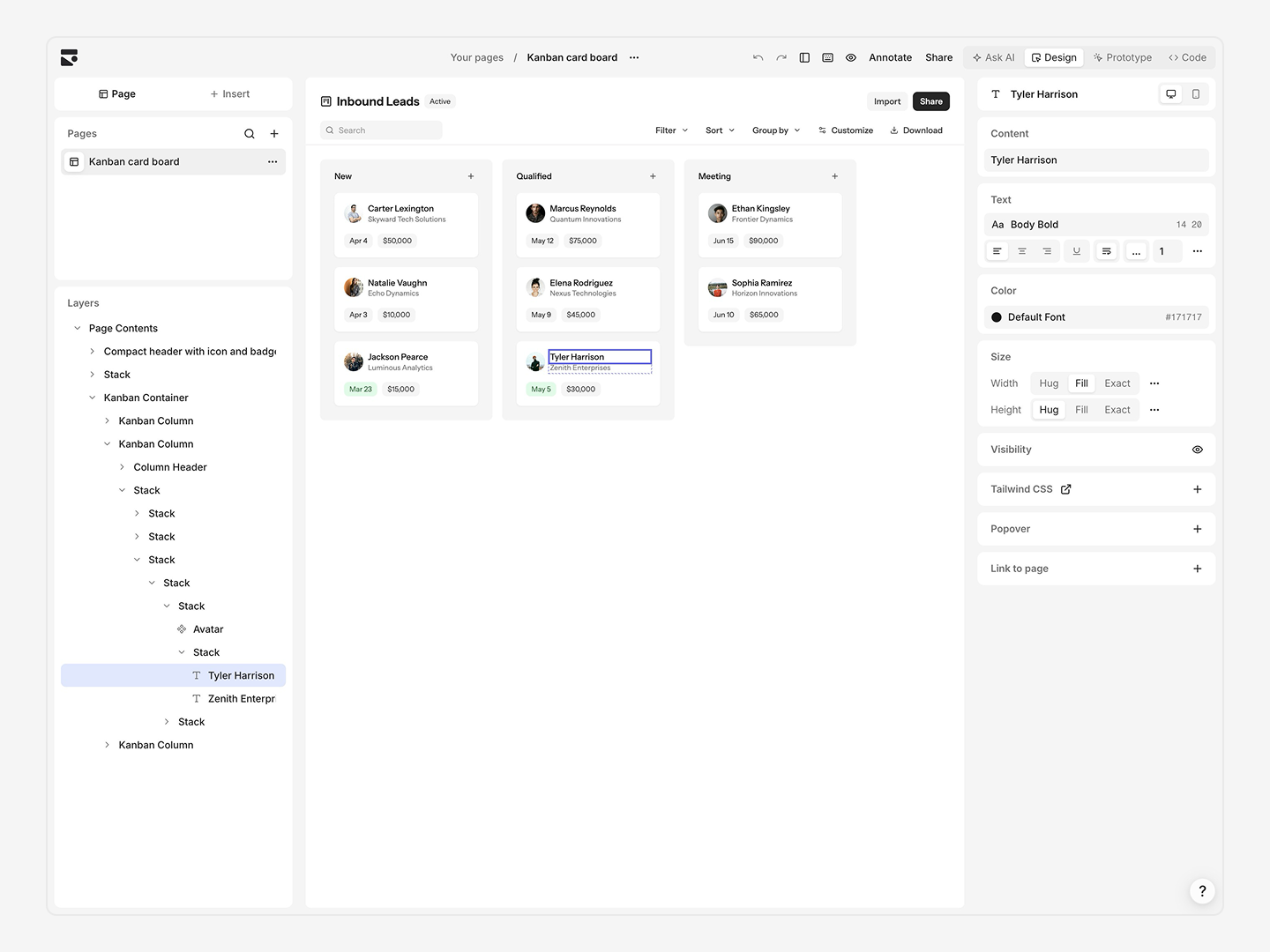
- Drag-and-drop elements on the page to rearrange.
- Select an element and click the + Insert buttons to add new elements inline.
- Edit styles and properties in the Inspector panel on the right.
- Right-click or press / for contextual edits to a selected element.
Set up your codebase
Next, we’ll create a new project using the Subframe Vite starter kit to implement your design. Open a new folder on your computer using Cursor or your favorite IDE.1
Setup your project
See Installation for detailed instructions on setting up Subframe in a new or existing project.
2
Install the MCP server
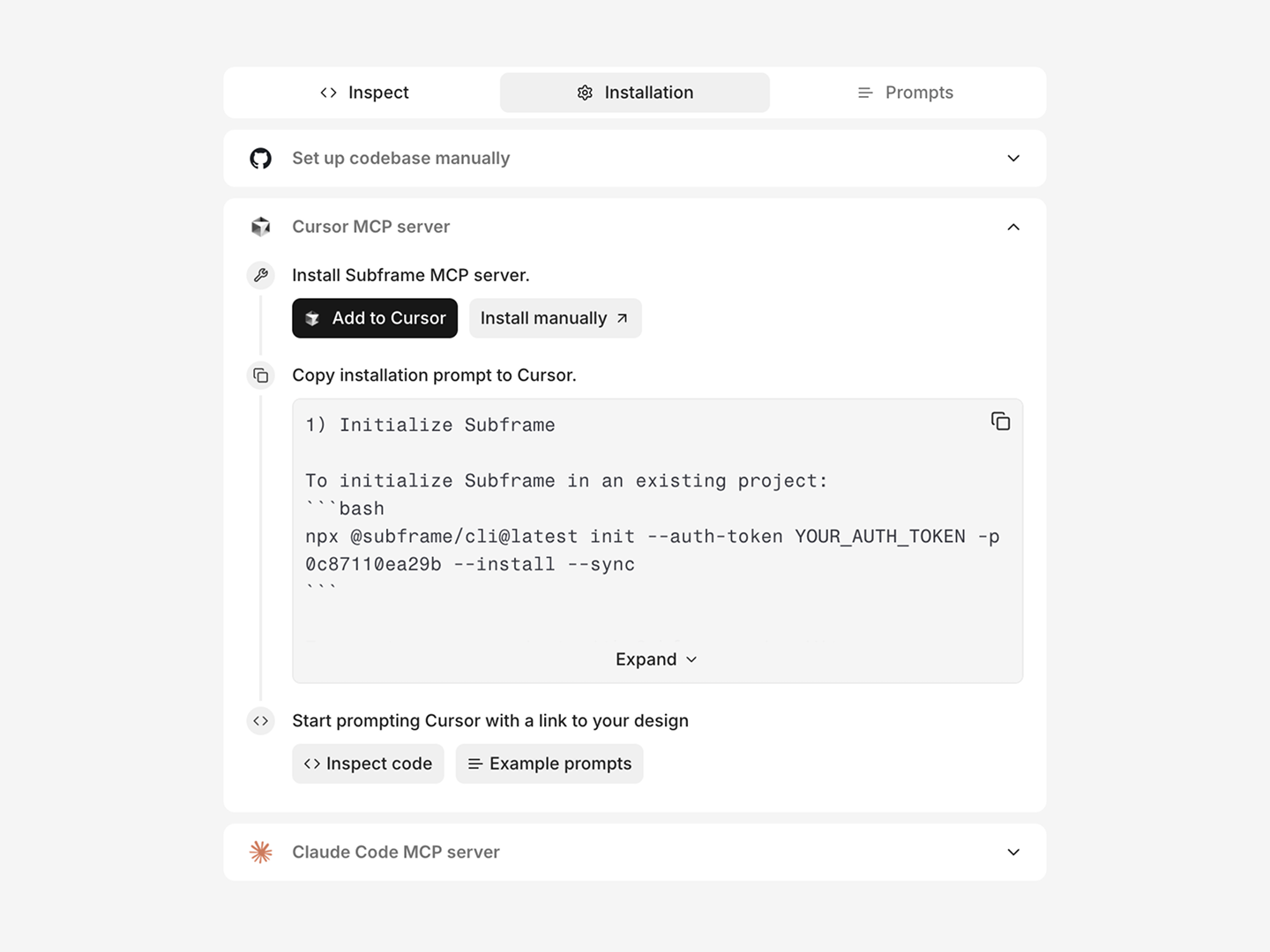
To learn more about the MCP server and its capabilities, see MCP Server.
3
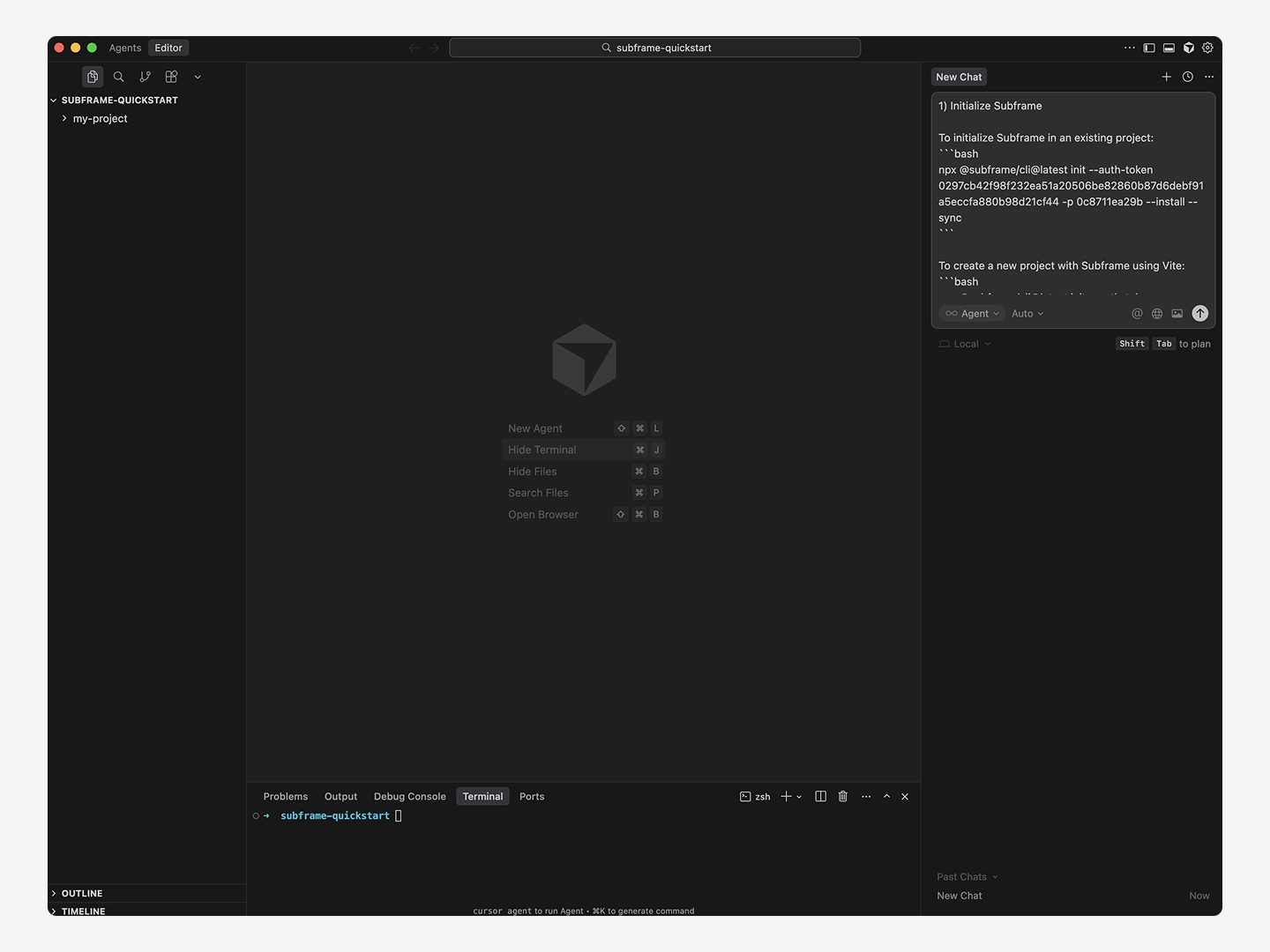
Initialize Subframe
4
Prompt to implement your design
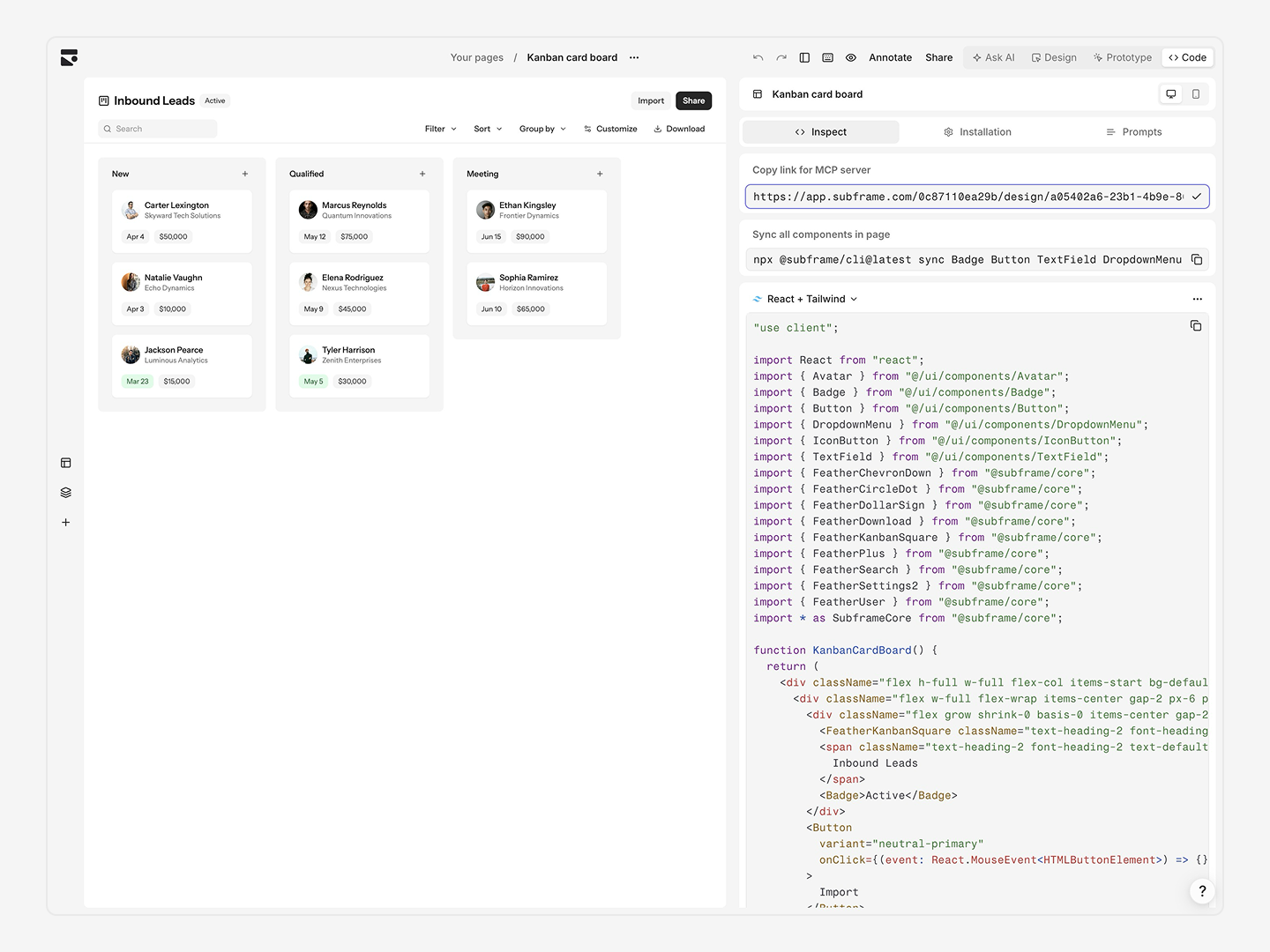
“Implement the design from this Subframe page [YOUR_PAGE_MCP_LINK]”AI fetches the code via MCP and adds business logic.
5
Start your development server
If you created a new project, you can start your development server with:Open
localhost:3000—your page renders exactly as designed.Next steps
Core concepts
Understand how Subframe works under the hood.
Learn the editor
Discover how to design using Subframe’s visual editor.
Go to developer docs
Dive deeper into using Subframe for developer handoff.
Ask AI
Explore AI-powered design features.