

This feature is only available on the Custom Plan. If you are an existing Custom Plan customer, continue with the
setup below. Once completed, contact us to enable SSO for your team.
1
Create App Integration in the Applications dashboard
Navigate to the Applications dashboard of the Okta admin console. Click Create App Integration.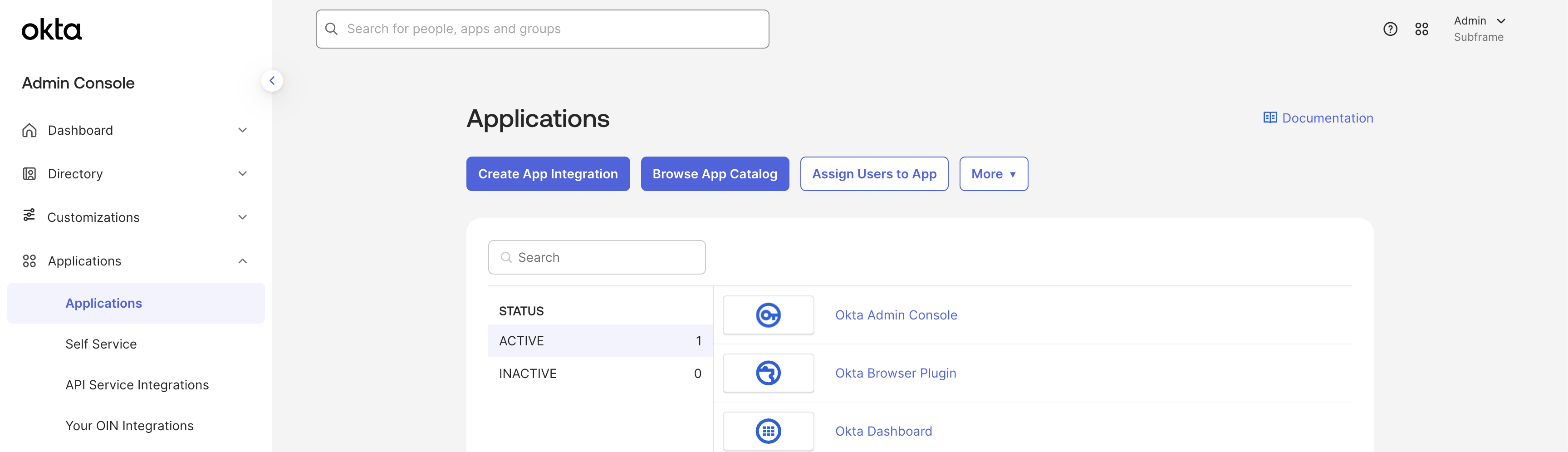
2
Choose SAML 2.0 in the App Integration Dialog
Subframe supports the SAML 2.0 SSO protocol. Choose it from the Create a new app integration dialog.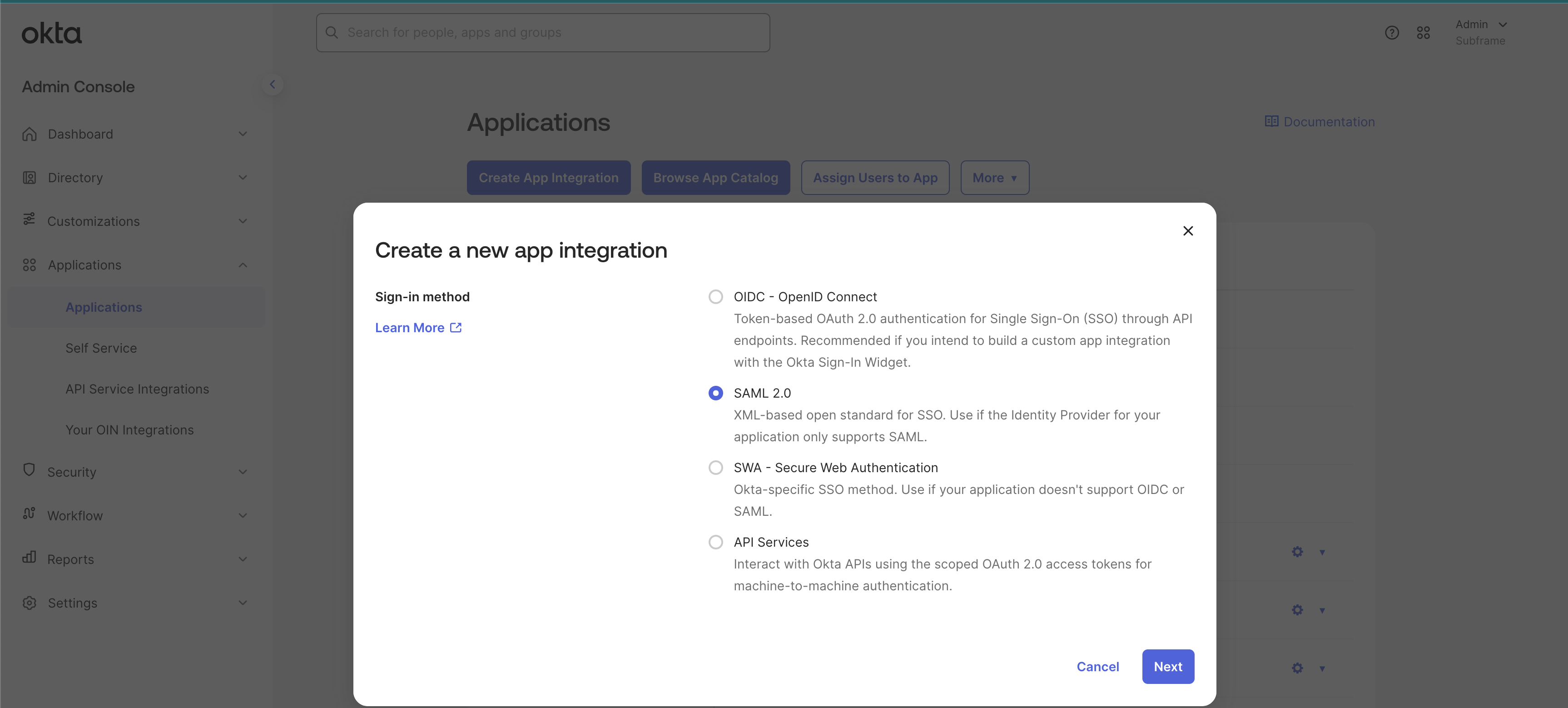
3
Fill out general settings
The information you enter here will be shown in your Okta applications menu. The App name should typically be Subframe.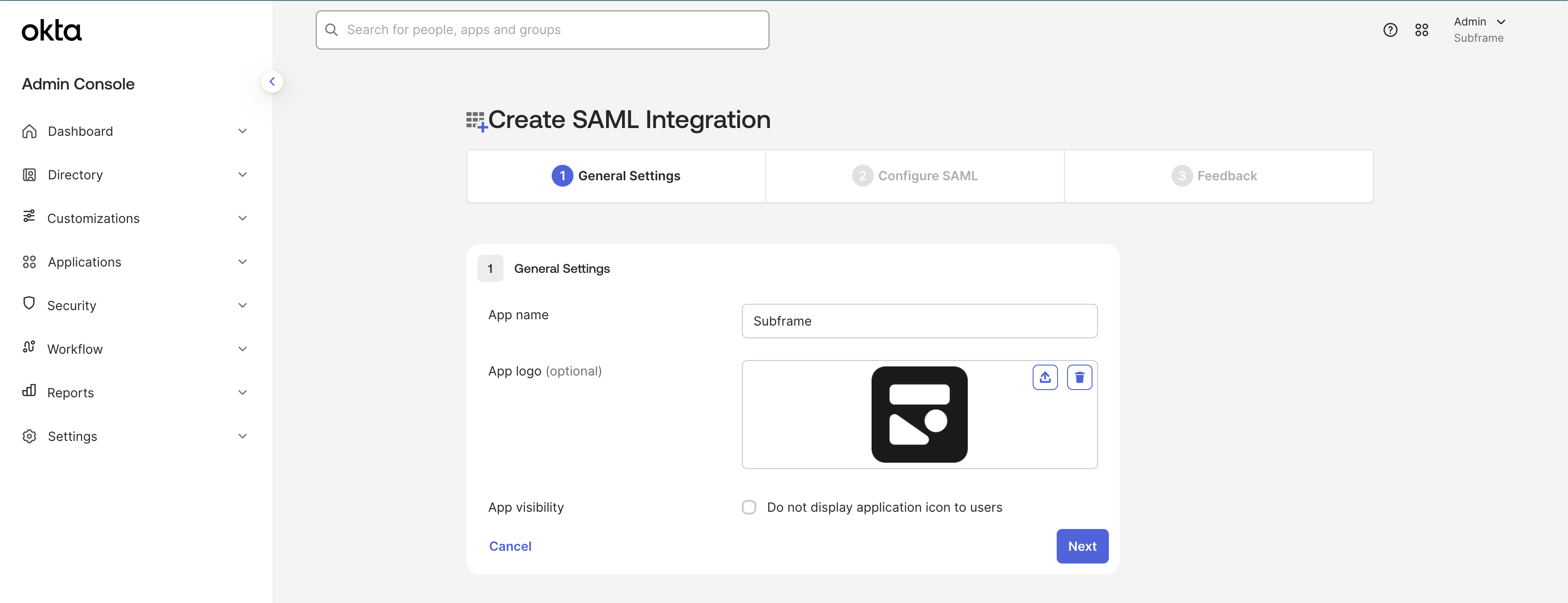

4
Fill out SAML settings
These settings let Subframe use SAML 2.0 properly with your Okta application. Make sure you enter this information exactly as shown in this table and screenshot.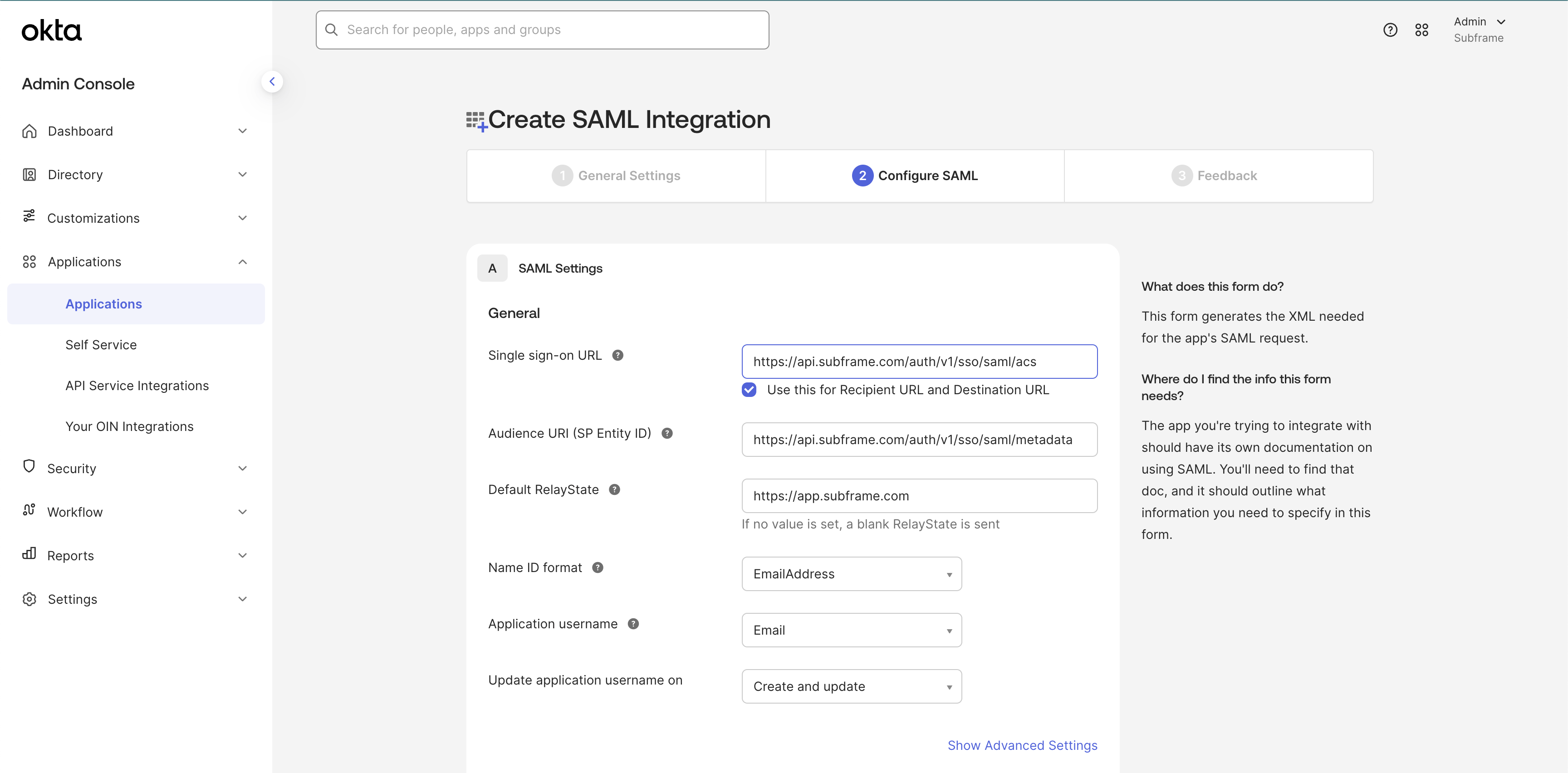
5
Fill out attribute settings
Attribute Statements allow Subframe to get information about your Okta users on each login.A 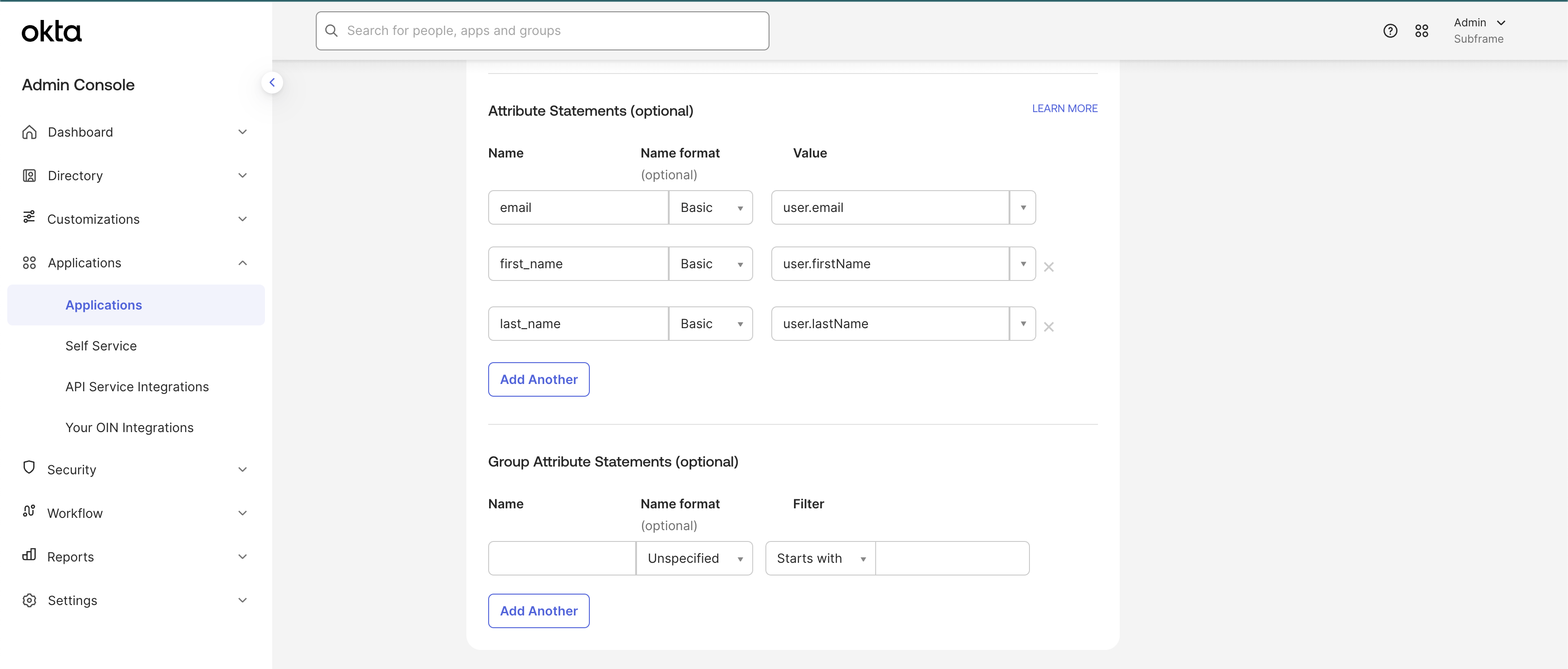
email to user.email statement is required. Other mappings shown below are optional and configurable depending on your Okta setup. If in doubt, replicate the same config in the screenshot below.6
Obtain IdP metadata URL
Subframe needs to finalize enabling single sign-on with your Okta application.After you finalize the creation of your Subframe Application in Okta copy the Metadata URL and send it to your Subframe contact. If you’re not sure who to send this to or need further assistance, contact support@subframe.com.The Metadata URL usually has this structure: 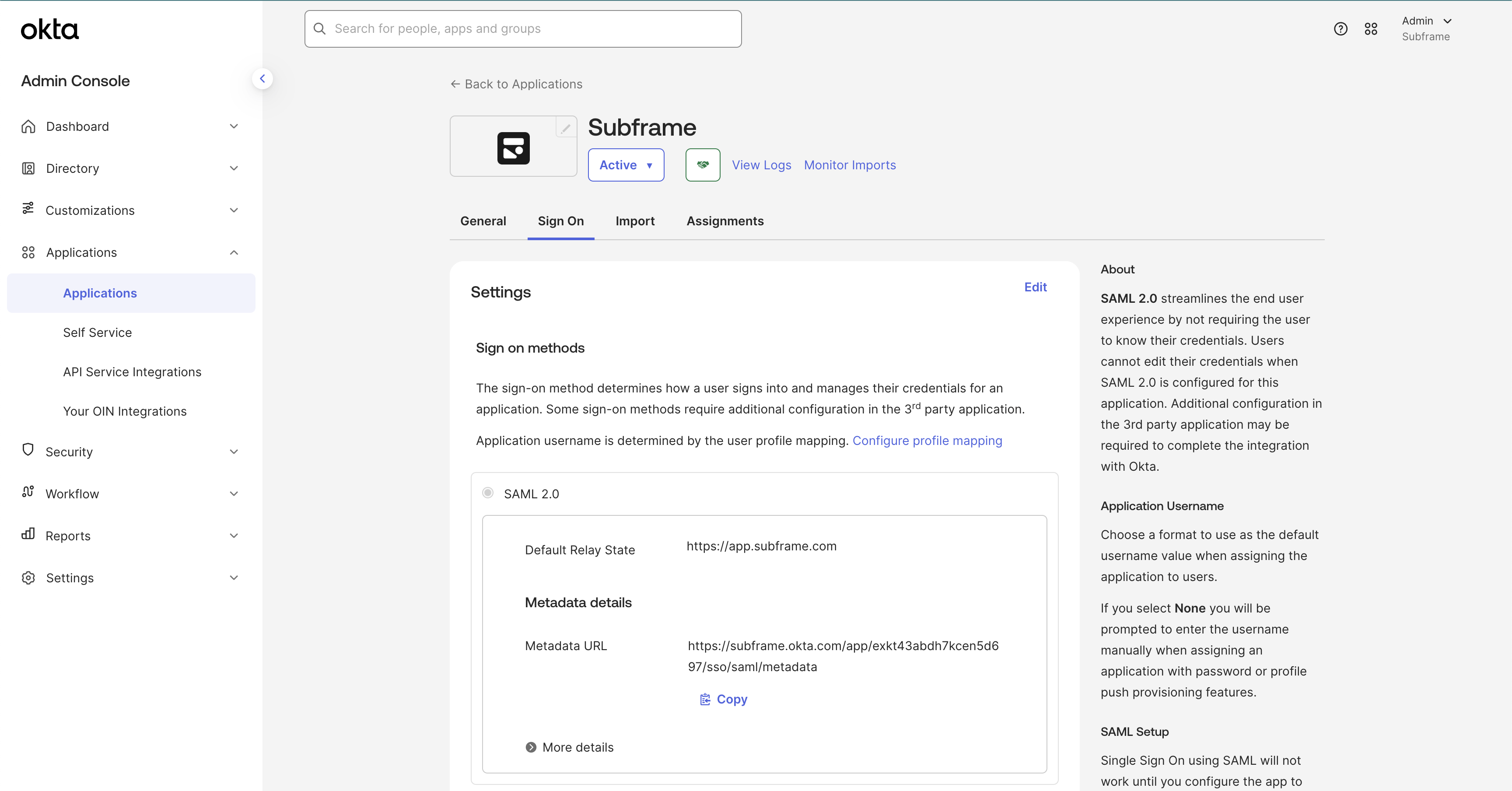
https://<okta-org>.okta.com/apps/<app-id>/sso/saml/metadata7
Wait for confirmation
Once you’ve configured the Okta app as describe above, send the Metadata URL to your support contact at Subframe.Wait for confirmation that this information has successfully been added to Subframe. It usually takes us less than 1 business day to configure this for your team.
8
Test single sign-on
Once you’ve received confirmation from your support contact at Subframe that SSO setup has been completed, you can ask some of your users to sign in with SSO via their Okta account.All they need to do is enter their work email address when they choose to sign in with SSO.If sign in is not working correctly, reach out to your support contact at Subframe for further guidance.